How to Resolve Duplicate Google Business Profiles Without Losing Reviews
Learn how to identify duplicate Google Business Profiles, request a merge or removal, and reduce the risk of losing reviews. Includes a practical process and prevention checklist for multi-location brands.
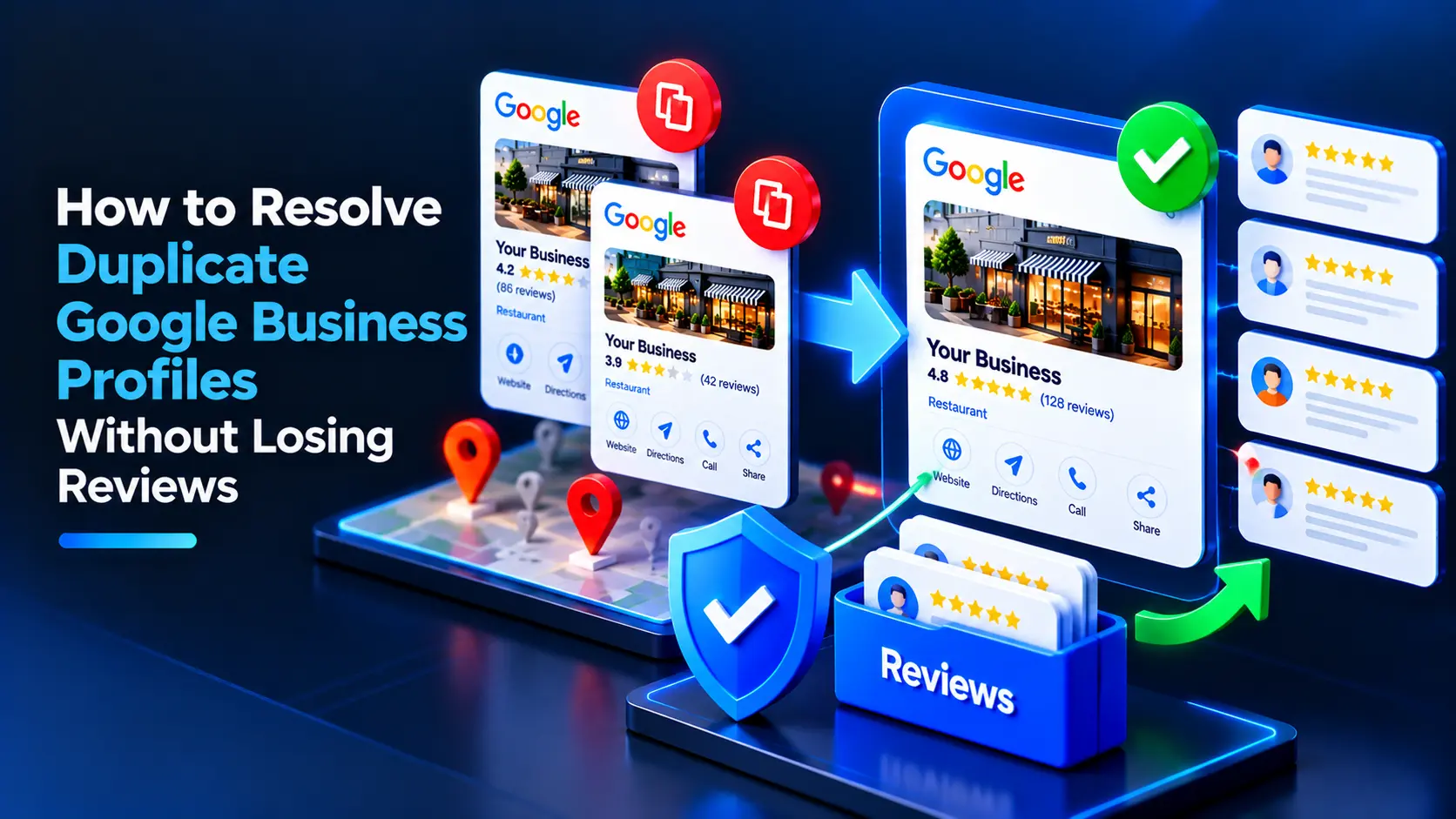
Duplicate Google Business Profiles can usually be resolved by identifying the profile Google considers the primary listing, then asking Google to merge the duplicates or remove the one that should not exist. Before you start, document both profiles and confirm that they represent the same real-world business; a careful request helps protect reviews and avoid changes to the wrong location.
What counts as a duplicate Google Business Profile?
A duplicate is an extra profile for the same business at the same location, or an unintended second profile created for a business that should have only one listing. Duplicates can arise when an owner creates a new profile instead of requesting access to an existing one, when Google creates a listing from other sources, or after a business changes its name or address.
Not every similar-looking profile is a duplicate. Separate locations in a multi-location brand generally need separate profiles when each location is eligible and staffed to serve customers during its stated hours. A department or practitioner may also qualify for a separate profile in some circumstances. Do not merge profiles just because they share a brand name, website, phone number, or ownership.
Google’s eligibility and representation rules matter. Profiles should represent real businesses, use accurate information, and follow Google’s guidelines. Adding service keywords to a business name when they are not part of the real-world name is not a valid way to distinguish profiles.
Will merging duplicate listings preserve reviews?
A Google-approved merge may combine reviews from duplicate profiles, but reviews are not guaranteed to transfer. Google may remove reviews that it considers ineligible, and reviews can take time to appear after a change. A merge is not a way to move reviews between unrelated businesses, locations, or owners.
Before requesting a merge, save records of the reviews and profile details on both listings. Note that review counts and individual reviews may change during Google’s review of the request. If reviews disappear after a merge, contact Google Business Profile support with the profile URLs and explain what changed; do not create another listing to try to restore them.
How to merge duplicate GBP listings safely
1. Confirm that the profiles represent the same business
Check the business name, address, phone number, website, category, and customer-facing operations on each profile. Confirm that both listings refer to the same real-world location and business—not two branches, a former location that still operates separately, or distinct eligible departments.
For a multi-location brand, compare the exact street address and local operations. If two profiles belong to different branches, keep them separate and correct their details instead. Merging distinct locations can confuse customers and put accurate location information or reviews at risk.
2. Identify the profile to keep
Choose the profile that is accurate, active, and best established as the listing for that location. Consider which one has the correct address, phone number, website, category, photos, and ownership access. Review history can help you understand which profile customers use, but a higher review count alone does not determine which listing Google will retain.
Record the profile URLs, business information, review counts, and any visible differences. Take screenshots if useful. Make sure you can access the profile you intend to keep, or request ownership before asking Google to resolve the duplicate.
3. Check for access or verification issues first
If you cannot manage one of the profiles, use Google’s ownership request process rather than creating another listing. If a profile is suspended, disabled, or rejected, address that issue through the appropriate review process before treating it as a routine duplicate. A duplicate request does not replace an appeal or reinstate a suspended profile.
For help with that separate process, see How to Fix Google Business Profile Suspensions and Rejections Step-by-Step. Replace the link with the article’s published URL if it differs from the site’s standard article path.
4. Request a merge or removal through Google
Sign in to the Google account that manages the profile you want to keep. Open Google Business Profile Help and contact support, selecting the option that best matches duplicate profiles or duplicate locations. Provide both profile URLs and explain plainly that they represent the same business at the same address.
Include:
- The profile URL you want to keep and the URL of the duplicate.
- The business’s correct name, address, phone number, and website.
- A short explanation of why the profiles are duplicates.
- Evidence that the business operates at the location, if Google requests it.
- Any relevant details about reviews or recent profile changes.
Ask Google to merge the profiles if they are eligible to be combined. If the duplicate represents a business that has permanently closed or should not exist, explain that and ask Google to remove or mark it appropriately. Google decides which action is suitable; do not assume that deleting a profile yourself will transfer its reviews.
5. Wait for Google’s decision and monitor both profiles
Google may request more information or take time to review the case. Respond through the support thread and avoid submitting repeated, conflicting requests while the case is open. Keep the business information consistent on your website and other trusted listings during the review.
After Google acts, check the retained profile in Search and Maps. Confirm that the address, phone number, website, hours, categories, and reviews are accurate. If the result is not what you expected, reply to the existing support case with the profile URLs and specific details rather than creating another profile.
What to do if Google will not merge the profiles
Google may decline a merge when it cannot confirm that the profiles represent the same eligible business, when the locations are different, or when the requested change conflicts with its guidelines. Review the case response and compare the profile details before taking further action.
Use this checklist:
- Confirm that both profiles refer to the same business and exact location.
- Correct inaccurate business information on the profile you control.
- Request access to the existing listing if ownership is the issue.
- Explain any legitimate name, address, or ownership change with supporting details.
- Ask support to clarify what information is needed if the reason for refusal is unclear.
If one profile is for a permanently closed location, report its status accurately rather than trying to fold it into a different active branch. If one profile is for a separate eligible location, keep it and make sure its address and contact details are distinct and correct.
How to prevent duplicate profiles across multiple locations
Multi-location brands need a consistent process for creating, updating, and monitoring profiles. A central team should keep a location record with each branch’s approved name, address, phone number, landing page, hours, and profile URL. Local teams should know how to request access and report changes without creating a replacement listing.
Before opening a new profile, search Google Maps and Google Search for the location and check whether a listing already exists. Assign clear ownership and access roles, and keep a record of who can edit each profile. When a branch moves, closes, or changes its phone number, update the existing profile where appropriate and review related website pages and directories.
Regular checks can help teams catch duplicate listings, incorrect hours, and unauthorized edits before they confuse customers. LocalRanks Pro’s Profile Monitoring & Editor can help teams monitor and manage Google Business Profile information across locations.
How to protect reviews while resolving duplicates
Reviews belong to customers’ experiences with a business, not to a marketing campaign. Do not offer discounts, gifts, or other incentives in exchange for reviews, and do not ask only satisfied customers to leave one. Google prohibits review gating and incentivized reviews.
Use a consistent, neutral request process that invites genuine customers to share honest feedback. Keep a record of review links and profile URLs for each location, and respond professionally to reviews on the profile that remains active. Avoid asking customers to repost reviews unless Google or support specifically advises you to do so.
If you manage many branches, review monitoring can help your team spot changes after a merge and respond from the right location. LocalRanks Pro’s Review Management & AI Replies supports review oversight and response workflows; staff should review suggested replies for accuracy and tone before publishing.
A final checklist before closing the case
- You confirmed that the profiles represent the same business at the same location.
- You selected the accurate profile to keep and recorded both profile URLs.
- You requested access or resolved suspension issues where necessary.
- You contacted Google with a clear explanation and supporting details.
- You checked the retained profile and reviews after Google’s decision.
- You updated your internal location records to prevent another duplicate.
A careful, documented request gives Google the information it needs to review the case and gives your team a clear record if anything changes. For multi-location businesses, consistent ownership and location data are the best safeguards against future duplicates.
Frequently asked questions
Can Google merge duplicate Business Profiles?
Yes, Google may merge profiles when they represent the same eligible business at the same location. Contact Google Business Profile support with both profile URLs and let Google determine whether a merge or another action is appropriate.
Will I lose reviews when Google merges duplicate listings?
Reviews may transfer when Google approves a merge, but transfer is not guaranteed and some reviews may be removed. Save the profile URLs and review details before submitting the request, then contact support if reviews are missing afterward.
Should I delete the duplicate Google Business Profile myself?
Do not assume that deleting a profile will merge its reviews into another listing. Ask Google to review the duplicate and specify whether the profiles represent the same business or whether one listing should be removed.
Can I merge profiles for two branches of the same brand?
Usually, no: separate eligible locations should generally have separate profiles, even when they share a brand name or website. Merge only when both profiles represent the same business at the same location.
What should I do if I cannot access the duplicate profile?
Request ownership or access through Google’s Business Profile process instead of creating another listing. Once you have access or can identify the profiles clearly, contact support with both URLs and explain the duplication.
How do I avoid creating duplicate profiles for new locations?
Search Google Maps and Search for an existing listing before creating a profile, and keep a central record of each location’s profile URL and approved business details. Give staff a clear process for requesting access and reporting changes.