How to Verify Your Google Business Profile: Every Method Explained
Learn how to verify your Google Business Profile using the methods Google may offer, including video, phone, email, live video, or mail. Get practical preparation tips and steps for handling delays, failed verification, and common mistakes.
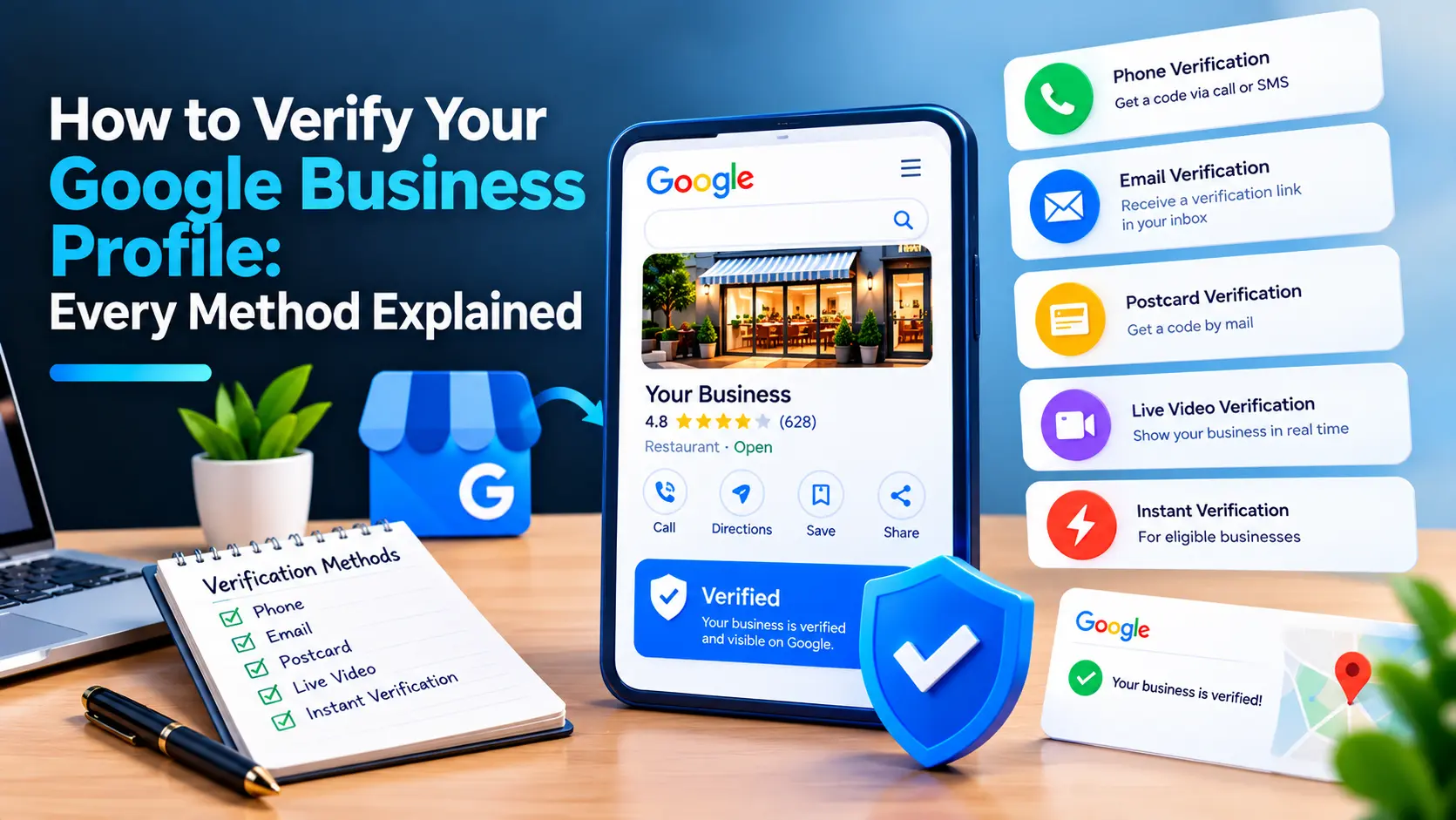
To verify your Google Business Profile, sign in to the Google account that manages it, select the business, and follow the verification option Google offers. Depending on your business and account, Google may offer verification by video, phone, text, email, live video call, or mail; you cannot choose a method Google has not made available. Verification confirms that you’re authorized to manage the profile, but it does not guarantee a particular ranking or prevent future policy reviews.
What Google Business Profile verification means
Verification helps Google confirm that a business is real and that the person managing its profile is authorized to do so. Until the profile is verified, some features may be limited, and changes may not appear publicly as expected.
Verification is different from profile completeness. Adding hours, photos, services, and a description can improve the information customers see, but those details do not replace Google’s verification process.
How to start verifying your Google Business Profile
- Sign in to the Google account that owns or manages the profile.
- Search Google for your business name, or search for
my businesswhile signed in. You can also open Google Business Profile through Google Search or Maps. - Select the correct business. If you manage multiple locations, check the address and business name carefully.
- Choose Get verified, Verify, or the verification prompt shown on the profile.
- Review the available methods and follow the instructions for the one Google offers.
If you don’t see a verification prompt, check that you’re signed in to the right account and that you have permission to manage the profile. A profile may already be verified, or Google may be reviewing a recent change. Avoid creating a duplicate profile to get around a missing verification option.
Google Business Profile verification methods
Google decides which verification methods are available for each profile. The options can vary by business, location, account, and other factors. Follow the method displayed in your account rather than relying on a method another business received.
Verify by video recording
Google may ask you to record and submit a video through the verification flow. The video should provide evidence that the business exists at the stated location and that you’re authorized to represent it.
Depending on the business, Google may ask you to show:
- The surrounding area, such as a street sign, nearby landmark, or building number.
- The business location, including permanent signage where applicable.
- Equipment, tools, inventory, or other items used to provide the business’s services.
- Access to a staff-only area, business equipment, or records that demonstrate your role.
Record the video in one continuous take if instructed. Don’t edit it, add narration or graphics, or include sensitive personal information. Follow the on-screen directions, since Google’s requirements can differ by business type. A service-area business that operates from a home address should not display that address to customers if it is hidden on the profile; show appropriate evidence of the business without exposing private information.
Verify by phone or text
If Google offers phone or text verification, it will send a code to the phone number shown in the verification flow. Make sure you can receive calls or messages at that number, then enter the code in the profile promptly.
Don’t share a verification code with anyone who contacts you claiming they need it to manage your listing. Enter it only in Google’s official verification process.
Verify by email
When email is offered, Google sends a verification message to the address displayed in the flow. Check that you can access that inbox, including its spam or junk folder, and use the link or code provided by Google.
If the email does not arrive, confirm that the address is correct and request another message through the profile. Don’t use an email address you cannot access.
Verify by live video call
Google may offer a live video call with a support representative. You’ll need a device with a camera and a reliable connection, and you may be asked to show the business location, signage, equipment, or proof that you’re authorized to manage the business.
Be prepared before joining. Have access to the premises and relevant business materials, but don’t show private customer information or anything unrelated to verification. Use the instructions in your profile to schedule or start the call.
Verify by mail
If Google offers postcard verification, it sends a code to the business address. Keep an eye out for the postcard and enter the code in the verification flow when it arrives.
While waiting, avoid changing the business name, address, or other key details unless necessary. Changes can invalidate a code or restart the process. Don’t edit, remove, or replace the profile just because the postcard is delayed; use the options in your account to request another code or get help.
What to prepare before you verify
A little preparation can prevent avoidable delays. Before starting, check that:
- You’re signed in to the Google account that should manage the profile.
- The business name follows Google’s rules and matches the name used in the real world. Don’t add extra keywords, locations, or marketing phrases to the name.
- The address or service area is accurate and reflects how the business serves customers.
- The phone number and website are correct and controlled by the business.
- You can access the location, equipment, or other evidence required by the method shown.
- You have permission from the business owner to manage the profile.
For a service-area business, set the profile up according to how customers are served. If customers do not visit your location, don’t present a residential or non-customer-facing address as a storefront. Review Google’s current eligibility and representation rules before submitting information.
How long Google Business Profile verification takes
Timing depends on the method and Google’s review. Some methods may confirm quickly, while a video or other submission can take longer to review. Mail verification depends on delivery time as well as processing.
Check the profile for status updates and follow any instructions Google provides. If the stated review period has passed, use the support or verification options available in your account. Avoid submitting repeated requests or making unnecessary profile edits while a verification is pending.
What to do if verification fails or gets stuck
First, read the message in your profile and identify what Google says is missing. Then correct the specific issue and follow the available next step. Common problems include an inaccessible phone or email, unclear video evidence, an address that doesn’t meet eligibility requirements, or a business name that includes prohibited additions.
Try these steps:
- Confirm you’re using the correct Google account and profile.
- Check that the business information follows Google’s guidelines and matches real-world evidence.
- If asked for a new video or code, submit it through the official flow and meet the instructions carefully.
- If the profile is suspended, disabled, or rejected, use the appropriate appeal or support process rather than repeatedly attempting verification.
- Keep copies of legitimate business documents that may help establish the business’s identity or location, but submit them only when Google requests them.
A verification problem and a suspension are not the same issue. If your profile has been suspended or a change was rejected, follow the steps in how to fix Google Business Profile suspensions and rejections. Don’t create another profile to replace a suspended one unless Google’s guidance specifically directs you to do so.
What to do after your profile is verified
Once verified, review the profile as a customer would. Check the business name, primary category, address or service area, hours, phone number, website, services, and photos. Keep information accurate and update it when the business changes.
Verification does not guarantee that every edit will be approved or that the profile will rank in a particular position. Continue following Google’s guidelines, respond to customers professionally, and check for incorrect edits or unexpected changes. A Google Business Profile audit checklist can help you review the profile systematically.
For ongoing profile checks, LocalRanks Pro’s Profile Monitoring & Editor can help businesses monitor and manage profile information. You can also use the free Google Business Profile audit to identify profile details that may need attention.
Common verification mistakes to avoid
- Adding keywords to the business name: Use the real-world business name, not a list of services or locations.
- Choosing an address that doesn’t represent the business: Follow the rules for storefronts and service-area businesses.
- Submitting unclear or edited evidence: Provide the evidence requested in the official verification flow.
- Sharing a verification code: Enter codes only in Google’s own process.
- Making major edits while waiting: Changes to key details can disrupt a pending verification.
- Creating duplicate profiles: Resolve the existing profile or contact Google instead of trying to bypass verification.
- Assuming verification is a ranking guarantee: Verification establishes management access; it does not promise visibility or a specific search position.
The safest approach is to use the verification method Google presents, provide accurate information, and respond to any follow-up request through your account. If the process stops, address the stated issue before trying again.
Frequently asked questions
How do I verify my Google Business Profile?
Sign in to the Google account that manages the business, open the profile in Google Search or Maps, and select the verification prompt. Follow the method Google offers and provide the requested evidence or code.
Can I choose my Google Business Profile verification method?
No, you can only use the methods Google makes available for your profile. Options may vary, so follow the instructions shown in your account.
How long does Google Business Profile verification take?
It depends on the method and whether Google needs to review your submission. Check your profile for status updates, and use its support options if the expected review period has passed.
Why can’t I verify my Google Business Profile?
You may be signed in to the wrong account, lack permission to manage the profile, or have information that needs correction. Check the profile’s status and follow any specific instructions Google provides.
What should I do if Google Business Profile verification fails?
Read the message in your account, correct the issue it identifies, and submit new evidence only through Google’s official verification flow. If the profile is suspended or rejected, use the relevant appeal or support process instead of creating a duplicate.
Does verifying a Google Business Profile improve rankings?
Verification confirms that you’re authorized to manage the profile, but it does not guarantee rankings or a specific position in search results. Keep the profile accurate and follow Google’s guidelines after verification.