How to Fix Google Business Profile Suspensions and Rejections Step-by-Step
Learn how to effectively fix Google Business Profile suspensions and rejections with this step-by-step guide. Understand the reasons and take actionable steps to comply with Google’s guidelines.
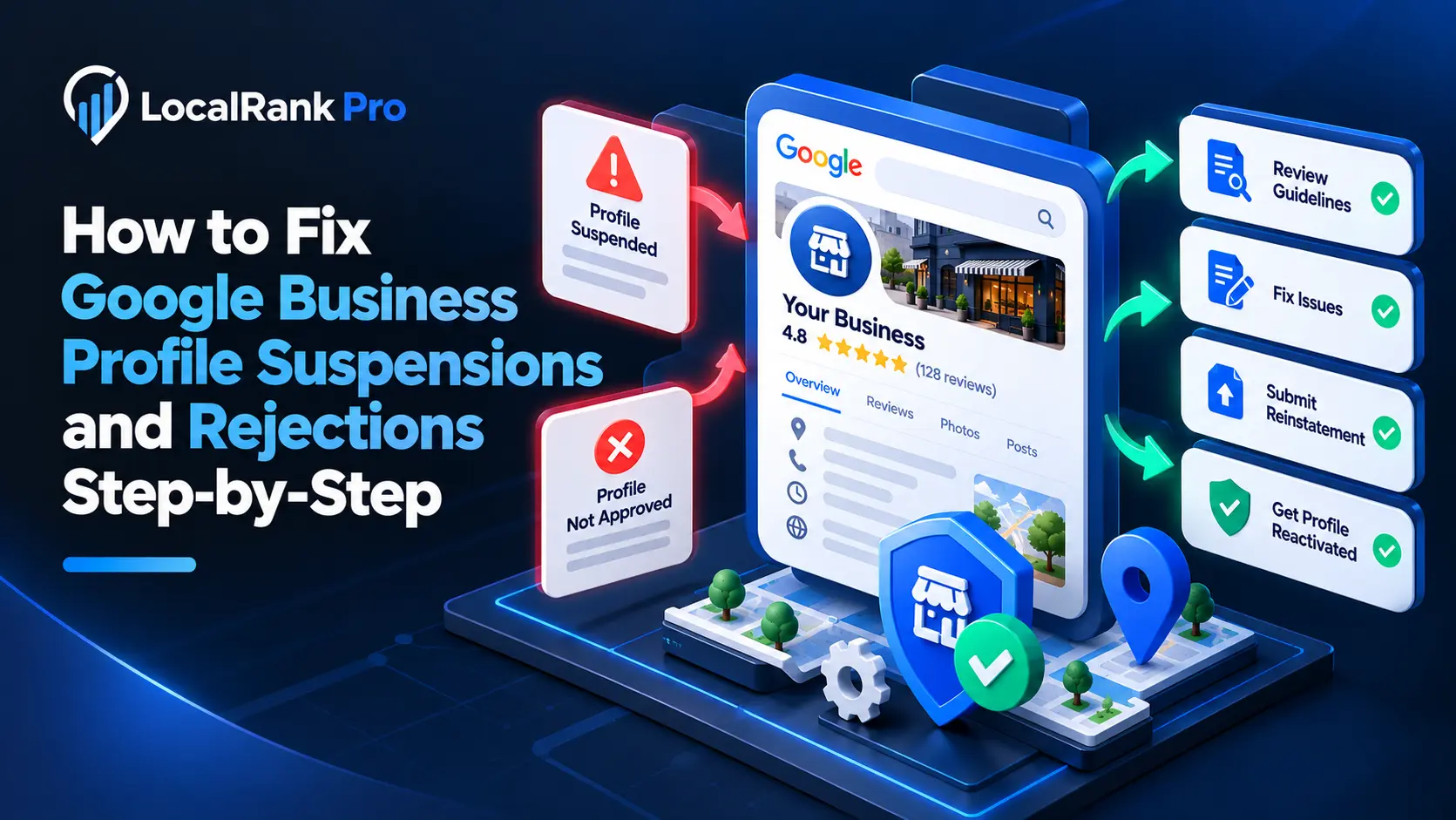
Understanding Google Business Profile Suspensions
If your Google Business Profile (GBP) has been suspended or your listing rejected, don’t panic. You can fix it by understanding the reasons behind the suspension and taking the necessary steps to comply with Google’s guidelines. This guide will walk you through the process step-by-step.
Common Reasons for GBP Suspensions
Before diving into the fix, it’s essential to know why your GBP may have been suspended or rejected. Here are some common reasons:
- Inaccurate Business Information: Providing incorrect business details such as name, address, or phone number.
- Violating Google’s Guidelines: This includes keyword stuffing, using a non-physical address, or engaging in review gating.
- Duplicate Listings: Having multiple listings for the same business can lead to confusion and suspension.
- User Reports: If customers report your business for any reason, this can trigger a review and potential suspension.
- Inactive or Incomplete Profile: An unoptimized or incomplete GBP can raise red flags.
Step-by-Step Guide to Fix GBP Suspension
Step 1: Identify the Cause
Start by reviewing the email from Google regarding your suspension. It should specify the reason for the action. If you don’t have the email, you can check your GBP dashboard for alerts.
Step 2: Review Google’s Guidelines
Familiarize yourself with Google’s guidelines for representing your business on Google. Ensure that you comply with:
- Accurate business name and address
- No keyword stuffing in your business name
- No fake reviews or incentivized reviews
- A physical location that customers can visit (if applicable)
Step 3: Correct Inaccuracies
If any inaccuracies are found in your GBP, correct them immediately. This includes:
- Updating your business name to match the one you use in the real world.
- Ensuring your address is correct and matches the one on your website.
- Checking your phone number for accuracy.
Step 4: Remove Duplicate Listings
Search for any duplicate listings of your business on Google. If found, you’ll need to:
- Claim the duplicate listings.
- Request removal of the duplicates through your GBP dashboard.
Step 5: Optimize Your Profile
Enhance your GBP by ensuring it is fully optimized. This includes:
- Adding high-quality images of your business.
- Completing all sections of your profile, including business hours, services, and categories.
- Utilizing the Profile Monitoring & Editor feature from LocalRanks Pro to keep your profile updated.
Step 6: Submit a Review Request
If you believe your GBP was suspended in error, you can submit a reinstatement request. Here’s how:
- Go to your GBP dashboard.
- Locate the option for reinstatement requests.
- Provide detailed information on why you believe the suspension was incorrect.
- Include any corrective actions you have taken to comply with Google’s guidelines.
Step 7: Follow Up
After submitting your request, wait for Google to review it. This process can take a few days. If you do not receive a response within a week, consider following up through the GBP support channels.
Handling Rejections
If your GBP listing is rejected, follow these steps:
Step 1: Understand the Rejection Reason
Similar to suspensions, Google usually provides a reason for rejection. Review these carefully to identify what needs to be corrected.
Step 2: Make Necessary Changes
Address the specific issues mentioned in the rejection notice. Common changes may include:
- Adjusting your business name to remove keywords.
- Providing additional proof of your physical address, such as a utility bill or lease agreement.
Step 3: Resubmit Your Profile
Once you’ve made the necessary changes, resubmit your GBP for review:
- Log in to your GBP account.
- Make sure all information is accurate and complete.
- Click the submit button to send your profile for review again.
Step 4: Monitor Your Profile
After resubmitting, keep an eye on your profile. Use the Profile Monitoring feature to track any changes and ensure that your GBP remains compliant with Google’s guidelines.
Leveraging LocalRanks Pro for GBP Management
Managing your Google Business Profile effectively can prevent future suspensions and rejections. Consider using LocalRanks Pro for features that enhance your GBP performance:
- Free Google Business Profile Audit: Use our audit tool to identify potential issues before they become problems.
- Review Management & AI Replies: Manage your reviews effectively and respond to them with AI assistance, ensuring compliance with Google’s review policies.
- Google Post Scheduler: Keep your audience engaged with regular posts through our scheduler feature.
Conclusion
Fixing a Google Business Profile suspension or rejection may seem daunting, but by following these steps and adhering to Google’s guidelines, you can restore your listing. Regularly monitor your GBP and leverage tools like LocalRanks Pro to maintain a robust online presence. With diligence and attention to detail, you can keep your business visible to potential customers.
Frequently asked questions
What causes Google Business Profile suspensions?
Common causes include inaccurate business information, violating Google's guidelines, duplicate listings, user reports, and inactive profiles.
How can I appeal a GBP suspension?
To appeal, go to your GBP dashboard, find the reinstatement request option, and provide details on why you believe the suspension was incorrect.
What should I do if my GBP listing is rejected?
Review the rejection reason, make the necessary changes, and then resubmit your GBP for review.
How can I optimize my Google Business Profile?
Ensure all sections are complete, add high-quality images, and regularly update your profile with accurate information.
What tools can help manage my GBP?
Consider using LocalRanks Pro for features like profile monitoring, review management, and a free GBP audit to enhance your listing.
How long does it take for Google to review my GBP request?
The review process can take a few days, but if you don’t receive a response within a week, consider following up.